rclone
rclone is a CLI tool that makes it easier to manage and sync files and directories in cloud storage and remote systems. It’s officially supported by Google Drive, Dropbox, Amazon S3, and many other services.
Common rclone use cases:
-
Mounting a remote: Mount a remote storage system as a local filesystem using
rclone mount. -
Filters and Exclusions: Use filters to include or exclude files based on patterns.
-
Limit bandwidth on transfer: Limit the transfer rate to avoid using excessive bandwidth.
-
Encrypt files and Cache: Use the
cryptbackend to encrypt files and thecachebackend to cache files for faster access. -
Schedule Backups: Schedule
rclonecommands using cron jobs or other task scheduling mechanisms.
Let’s see in detail how to use rclone.
First, open a terminal window and launch
sudo apt update && sudo apt install rclone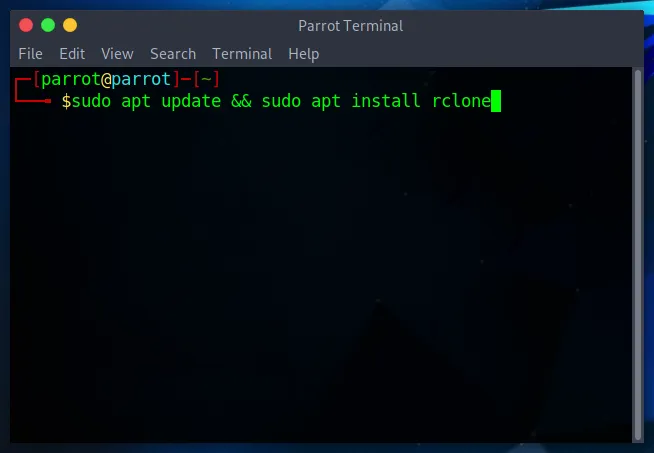
This will install rclone in your system. Now it needs to be configured:
rclone config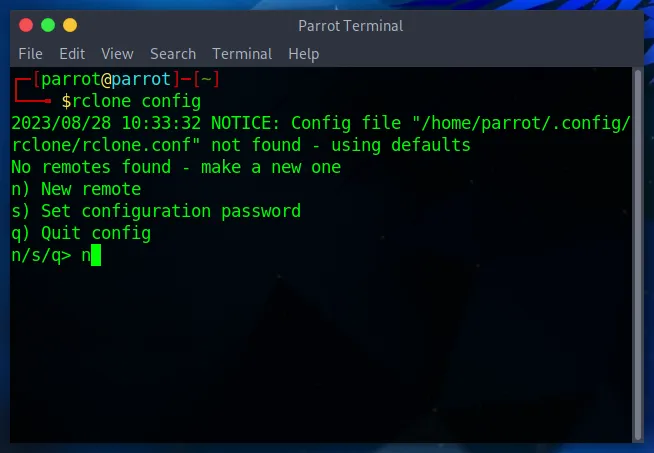
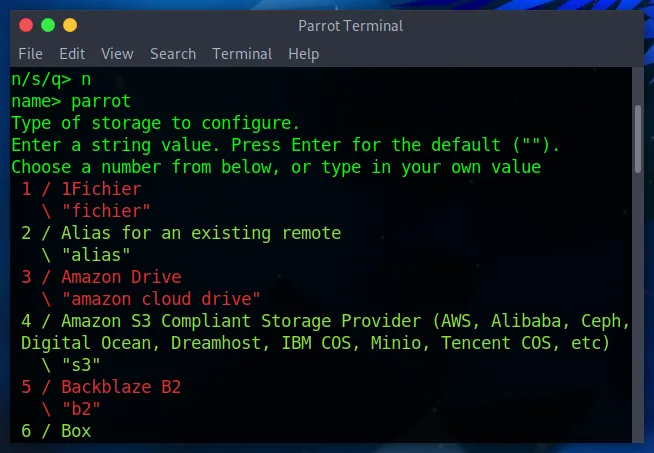
The configuration wizard will ask for the remote name, storage type, and credentials (whether they are API keys, authentication tokens, etc.), so be sure to check the instructions given by your provider and take note of these credentials.
After that, rclone is ready to be used.
Basic Usage
Section titled “Basic Usage”- List all of the remotes configured
rclone listremotes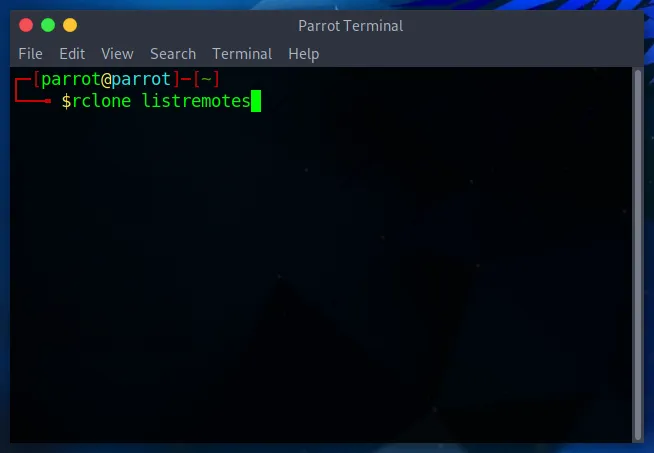
- Copy files from source storage to destination storage
rclone copy source:path dest:path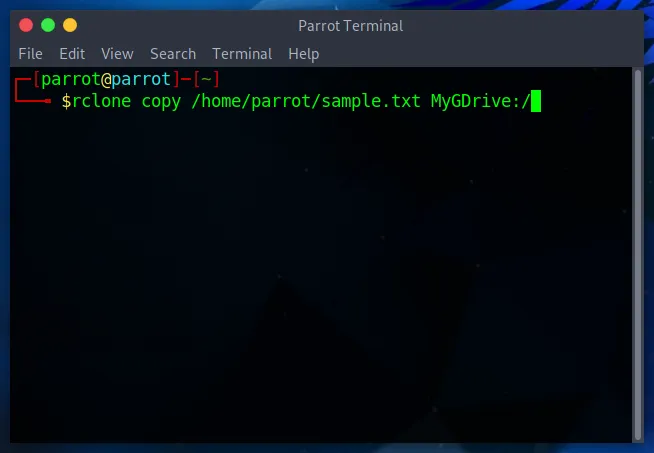
where source:path is the source storage and dest:path is the remote storage of destination (e.g a personal folder sent to a remote, or a file sent from a remote to another)
- Sync storage
rclone sync source:path dest:path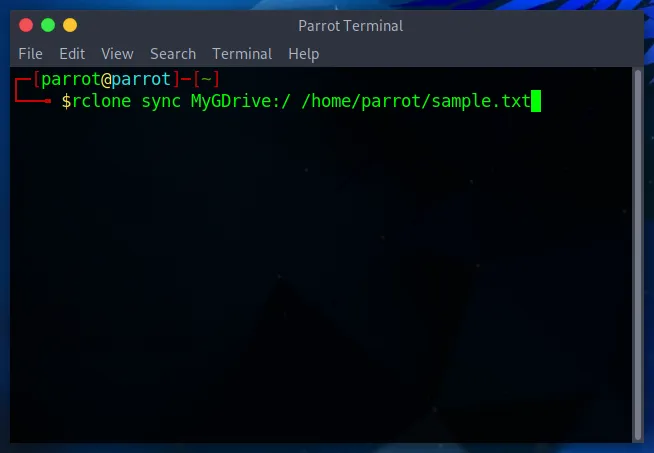
- List all of the files in a remote
rclone ls remote:path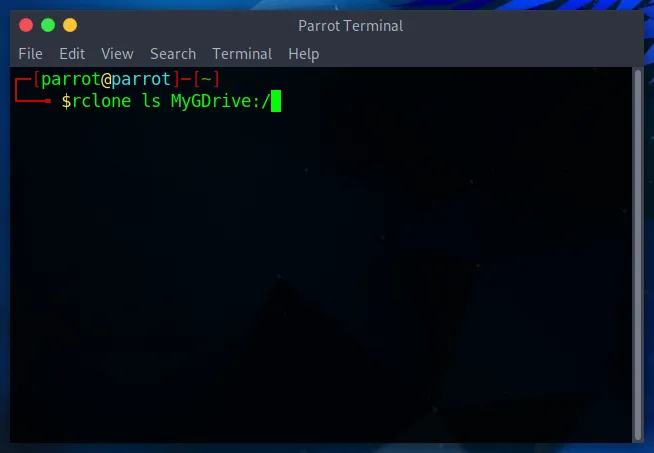
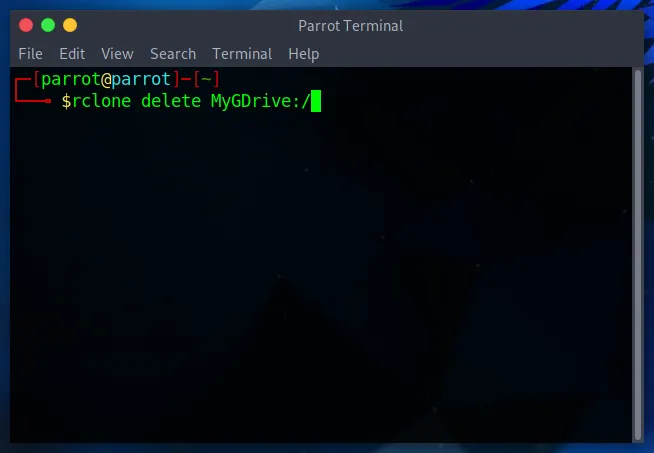
- Delete all files from a specific path in the remote
rclone delete remote:path